How to Download, Install, and Remove APK / OBB Files from APKZOZO
At APKZOZO, our goal is to make downloading and installing Android apps and games as smooth, safe, and beginner-friendly as possible. This guide walks you through everything you need to know about handling APK and OBB files—from installation to removal.
What Are APK and OBB Files?
APK Files
An APK (Android Package) is the standard installation file used by Android. Think of it as a compressed folder containing all the components your device needs to install and run an application.
OBB Files
OBB (Opaque Binary Blob) files store extra data for apps that require large assets such as graphics, audio, or videos. Some games won’t work correctly unless both the APK and OBB are installed in the proper locations.
Before You Start: Allow Installation from Unknown Sources
Android blocks third-party app installs by default. You need to enable permission for installations outside the Play Store.
Steps:
- Step 1: Open Settings on your Android device.
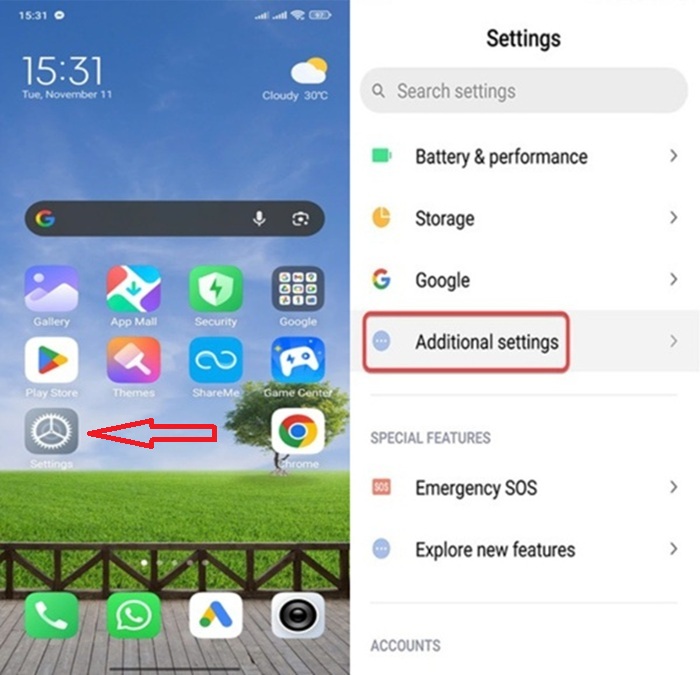
- Step 2: Go to Security or Privacy (varies by device).
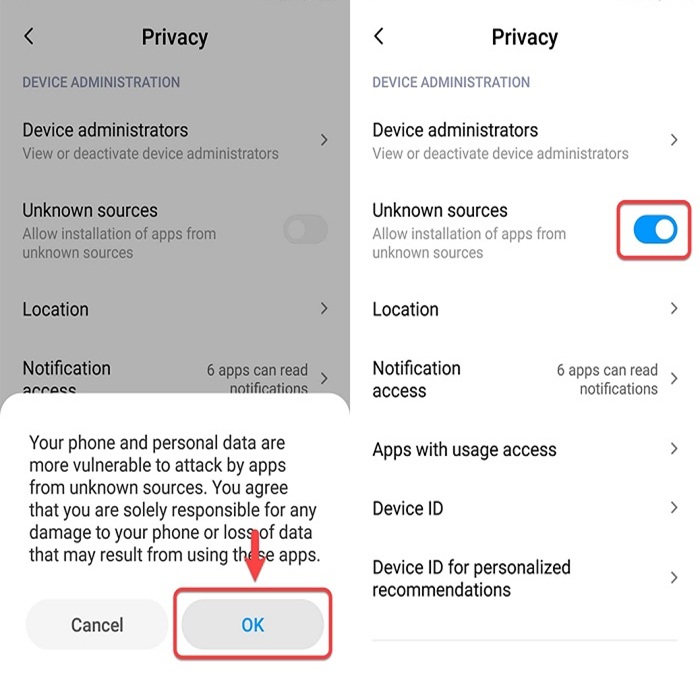
- Step 3: Look for Install unknown apps or Unknown sources.
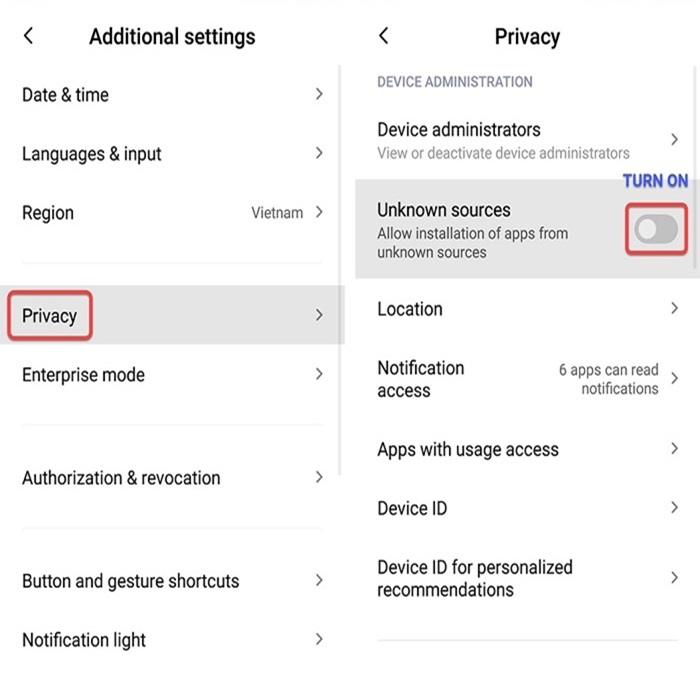
- Step 4: Allow the browser or file manager you’ll use for installing the APK.
- Step 5: Confirm the security prompt when asked.
How to Install an APK from APKZOZO
- Step 1: Visit APKZOZO and download the APK file of the app or game you want.
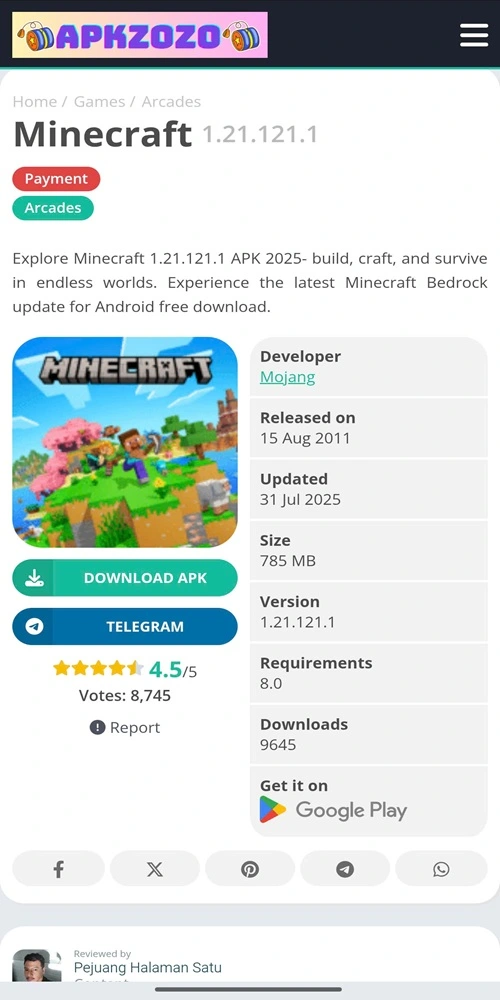
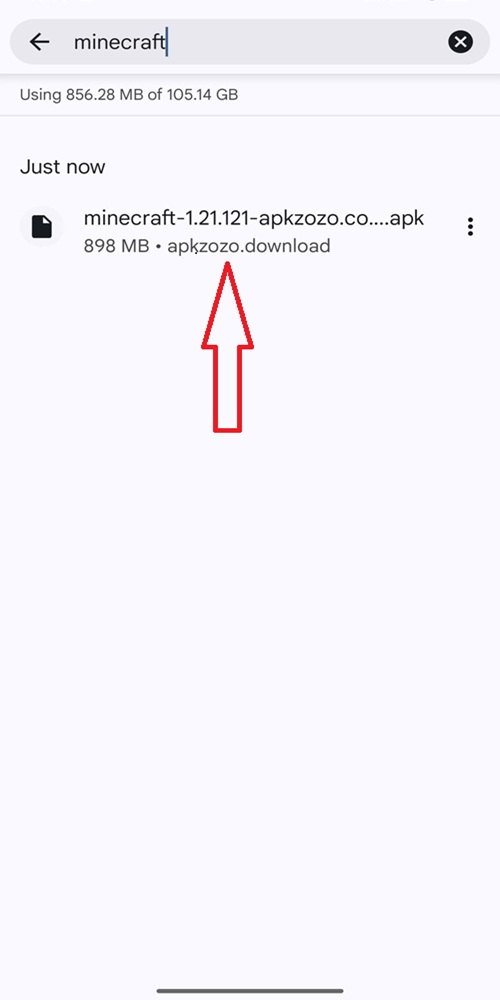
- Step 2: After downloading, tap the APK file.
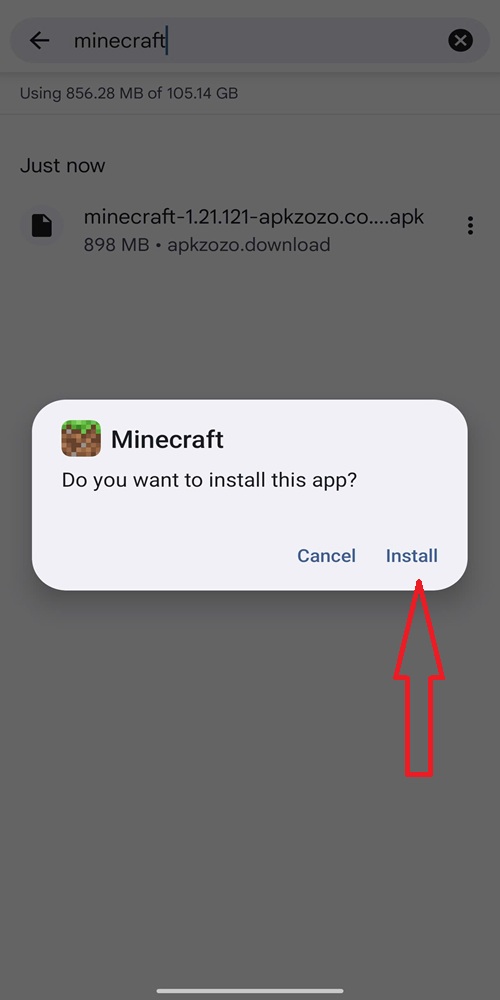
- Step 3: Select Install and wait for the process to finish.
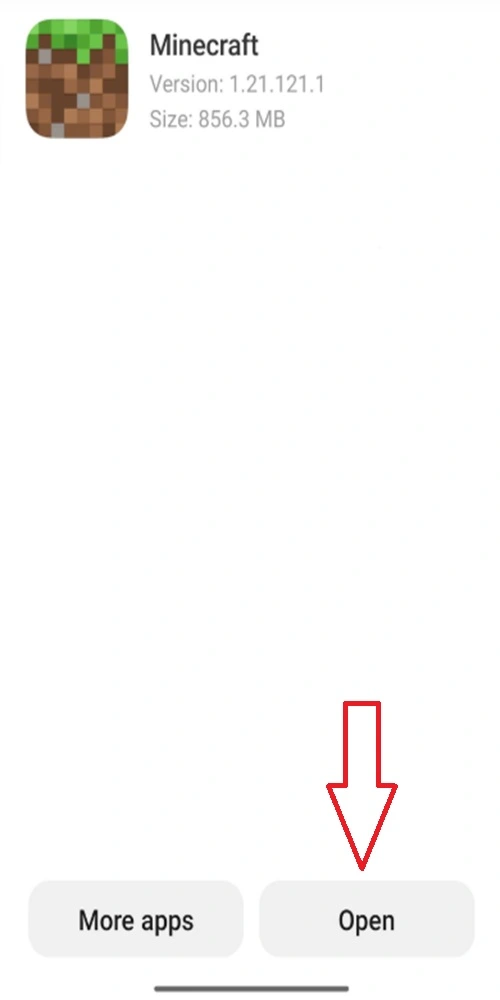
- Step 4: Choose Open to start the app right away, or Done to exit the installer.
How to Install Apps That Include OBB Data
Some games require an additional OBB file to function properly. Follow these steps:
- Download and install the APK from APKZOZO. When finished, tap Done (do not open the app yet).
- Download the OBB file from our website—usually provided as a ZIP.
- Extract the ZIP file to get the OBB folder.
- Move the extracted folder to:
/SDCARD/Android/obb/
Example:- Package name: com.example.game
- Final path:
/SDCARD/Android/obb/com.example.game/
Inside it should be a file like:
main.xxxxx.com.example.game.obb
- Now launch the app or game—it should load with full data.
Common Errors and How to Fix Them
“App Not Installed”
Possible causes:
- A different version of the app is already on your device → Uninstall and clear cache/data.
- Play Protect blocked the installation → Disable “Scan apps with Play Protect.”
- Not enough storage → Free up internal memory.
- Incompatible APK version → Check your device’s CPU architecture and Android version.
- Corrupted file → Re-download from APKZOZO.
“Download Failed Because You May Not Have Purchased This App”
This appears mostly for OBB-based games.
Solutions:
- OBB file missing or placed incorrectly → Recheck the folder path.
- Play Store version installed → Uninstall the Play Store version first.
- Some apps require account verification → Not always bypassable.
How to Uninstall Apps and Remove Their OBB Files
- Open Settings or your App Drawer.
- Go to Apps / Applications / App Manager.
- Select the app you want to remove.
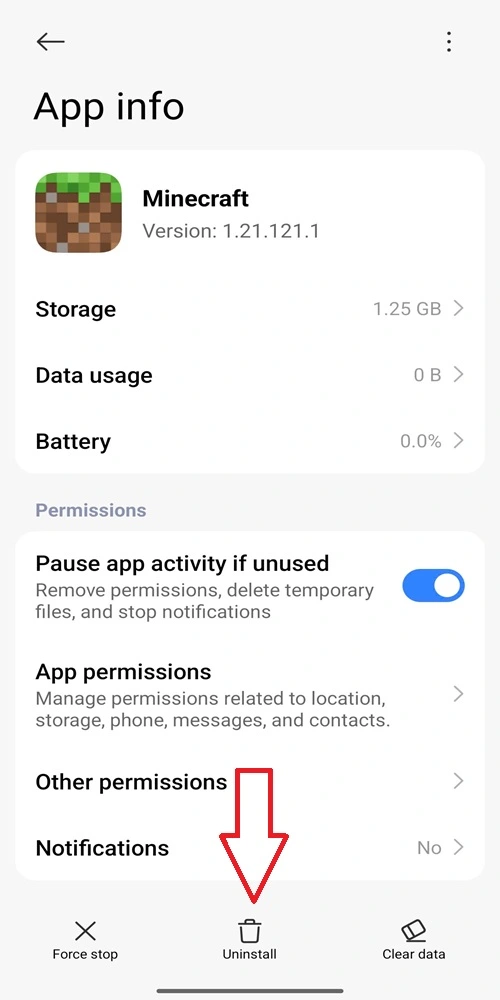
- Tap Uninstall and confirm.
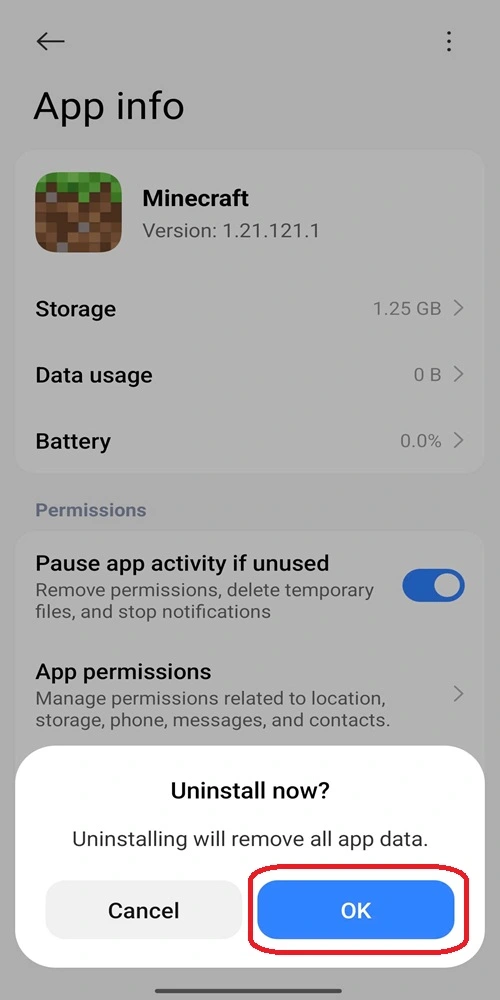
- For apps with OBB data, manually delete its folder under:
/SDCARD/Android/obb/[package-name]
This helps reclaim storage space.
Final Tips for Safe Installation
- Download only from trusted sources—APKZOZO verifies and scans all files before publishing.
- Keep your device updated and use antivirus protection if needed.
- Always check app requirements such as Android version and CPU type (ARM, ARM64, x86).
- After installing an app, you may disable “Install unknown apps” again to improve device security.
Thank you for choosing APKZOZO. We hope this installation guide helps you enjoy your apps and games without hassle. If you need additional support, feel free to reach out anytime.